Scope
Steps to edit and delete Saved Groups.
Instructions – Edit Saved Group
-
Go to Advanced Messaging > Saved Groups.
-
Right-click the selected group > Edit.
-
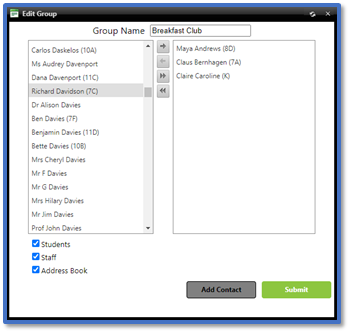
In Edit Group, you can do the following:
-
Change the Group Name to rename it.
-
Add more group members by selecting the contact and dragging them to the group list on the right. To add multiple contacts, hold Shift and select each one then drag them.
-
Remove group members by selecting the contact and dragging them out of the group list. To remove multiple contacts, hold Shift and select each one then drag them.
-
Once finished, click Submit.
Instructions – Delete Saved Group
-
Go to Advanced Messaging > Saved Groups.
-
Right-click the selected group > Delete.
-
In the Delete Group window, click OK.


