Scope
Steps to add a staff member as a new user.
Instructions – Creating the New User
-
Go to Tools > Users > Add New User.
-
Tick one of the following:
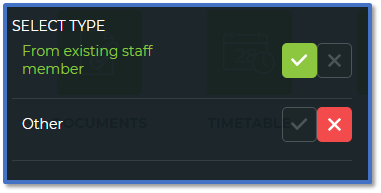
-
Click Next Step.
-
If you ticked From existing staff member:
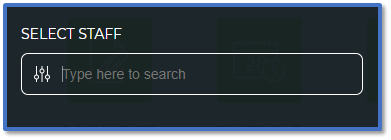
-
-
In Select Staff, enter the staff member’s name.
-
Tick the staff member in the list > Next Step.
-
The User Details should be populated with the existing staff data in Messenger.
-
Click Next Step.
-
If you ticked Other:
-
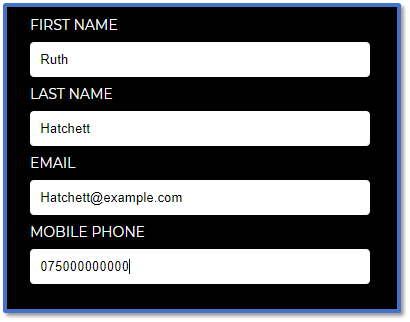
In First Name, enter the staff member’s forename.
-
In Last Name, enter the staff member’s surname.
-
In Email, enter the staff member’s work email. This will be used to complete registration and if they forget their password.
-
In Mobile, enter the staff member's mobile number. This will be used to complete registration and for previewing messages.
-
Click Next Step.
-
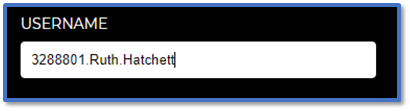
In Choose a username, it will automatically generate a username based on the staff member’s name and the account. You can edit the username or keep it > Next Step.
-
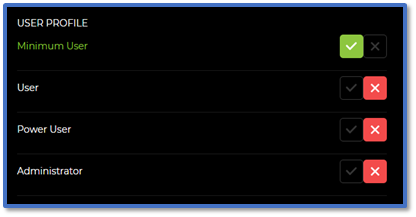
Select the User Profile with the relevant permissions for this staff member > Next Step.
-
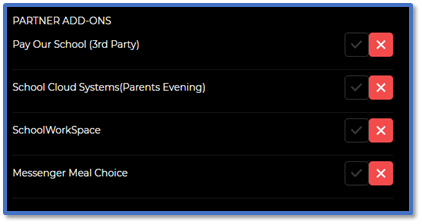
Select the Partner Add-Ons that your school uses if applicable > Send.
-
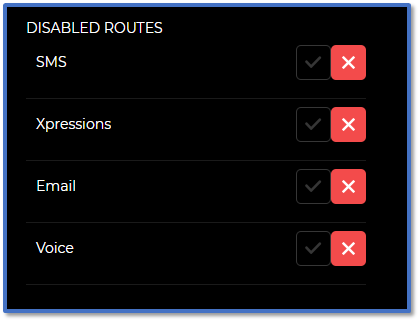
Tick the Disabled Routes for the message routes that you do not want the staff member to use. These options will not be available when the user tries to send a message.
-
Click Next Step.
-
Confirm the details of the user on the preview page and if satisfied, click Send. This sends an email to the email address provided in the user details.
-
Continue to the next section for the steps the new user must take to complete this setup.
Instructions – Logging in as the New User
-
Go to your mailbox and find the email called New M5 User sent from support@groupcallalert.com.
-
Copy your username and click on the link provided.
-
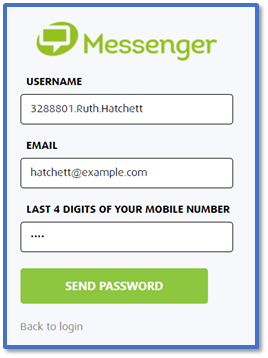
This will open a webpage with your Username and Email already filled in. Enter the Last 4 digits of your mobile number and click Send Password.
-
You will receive a text message and an email containing a copy of your password.
-
Click Back to login.
-
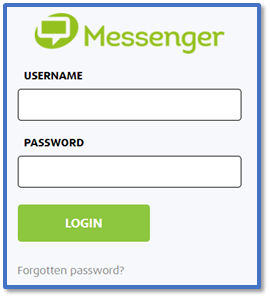
Enter the Username and Password and click Login.
-
In the Change Password screen, enter the current password followed by the password you want to change it to and click Submit.
-
You will now be able to log into Messenger with those credentials.


