Scope
Steps to manage messages that have been submitted for authorisation by another users.
Instructions
-
Go to Authorise. The red badge icon indicates the number of messages waiting for authorisation.

-
The Authorise section displays the date and time the message was created, the message header, which user created it, its status and the number and type of messages that would be sent.

-
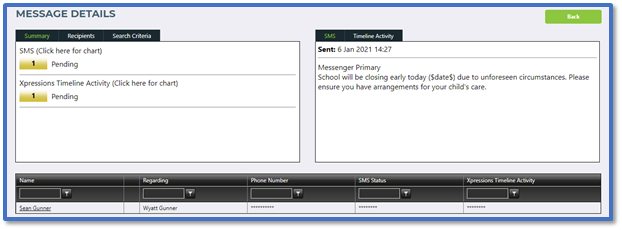
Select the blue info icon to go to the Message Details page. This will show you the full contents of the messages and the intended recipients. Read our guide for further information: Messenger: Check Message History.
-
Select the red cross icon to cancel the message or select the green tick icon to confirm you want it to send.
Alternatively, users can authorise their own messages. Read our guide for further information: Messenger: Authorise Your Messages.


