Scope
Steps to check the History section for your sent messages.
Instructions
-
Go to History and select one of the following:
-
History – Today: This shows messages sent today.
-
History – Yesterday: This shows messages sent yesterday.
-
History – Last 7 days: This shows messages sent in the past week.
-
History – All: This shows messages sent in the past month.
-
Each option will take you to the same page but uses a different search range for showing your messages. The table on this page provides the following information:

-
-
Transmit Time (local): The date and time that the message was sent or is scheduled to send.
-
Message: A preview of the message contents.
-
Type: Whether the message sent was Broadcast, Open or Closed. Read our guide for further information: Messenger: Broadcast, Open, and Closed SMS.
-
Sender: This displays the user that sent the message.
-
Delivery Status: This is whether the message has been Processed or Pending. Read our guide for further information: Messenger: Schedule Messages.
-
SMS/Xpressions/Voice/Email/Letter: This is the number of that message type sent out to the recipients.
-
SMS Count: This is the total cost for any SMS sent.
-
Partner: This indicates which module the message was sent.
-
Click on Advanced Search to open a date filter. Enter the Start Date and End Date to choose the period that you want to view the history of messages for and click Search.

-
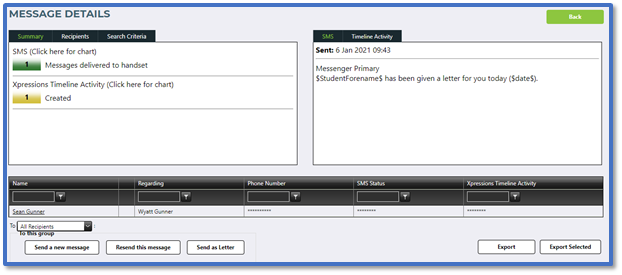
Click on a message to open the Message Details page.
-
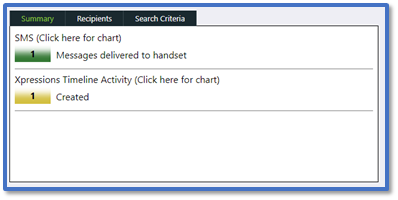
The Summary tab shows the total number of messages sent with each delivery status.
-
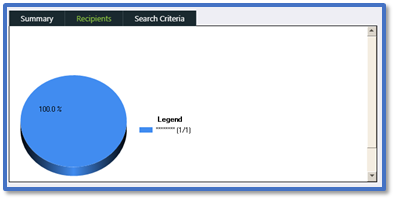
The Recipients tab provides a bar chart of the different delivery statuses for the message and is only present when sending SMS.
-
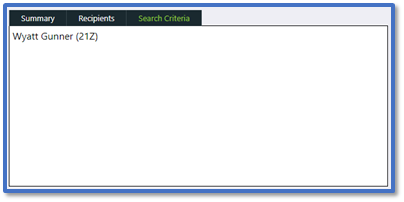
The Search Criteria tab shows the criteria that was used to select the contacts that the message was sent to.
-
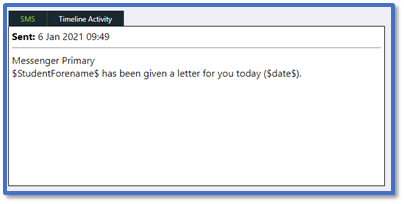
The top right panel shows the contents of the message for each message type used and when it was sent.
-
The bottom table shows the list of recipients, the contact details used, and the status of the messages sent. This list can be filtered.

-
Use Export to download and open a spreadsheet with a copy of the recipient’s list, or Export Selected to do the same with a specific row selected.
-
Finally, you can resend the message with the options below. Read our guide for further information: Messenger: Resend Messages.


