Scope
Steps to edit an existing user.
Instructions
-
Go to Tools > Users > Edit User.
-
In Select Users, enter the relevant username.
-
Tick the user > Next Step.
-
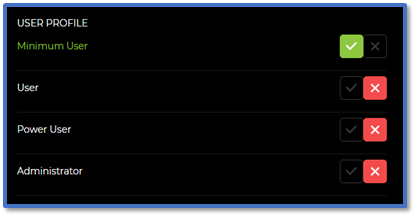
Tick the User Profile with the relevant permissions for this staff member > Next Step.
-
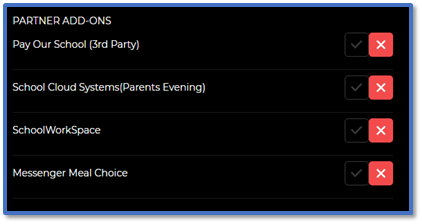
Tick the Partner Add-Ons that your school uses if applicable > Send.
-
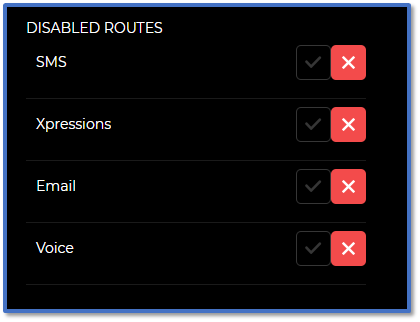
Tick the Disabled Routes for the message types that you do not want the staff member to use > Next Step.
-
Confirm the updated details of the user on the preview page > Send.


