Scope
Steps to select absent students in Advanced Messaging.
Instructions
Before sending any messages with the following instructions, please ensure that your attendance is up to date using our guide: Messenger: Attendance in Advanced Messaging.
-
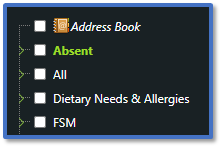
Go to Advanced Messaging > Absent.
-
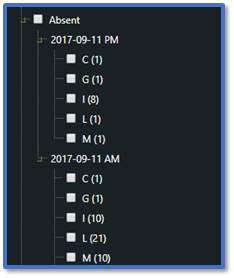
Expand the Absent group to see a list of subgroups. These are dates with absences from your MIS, divided into AM and PM sessions.
-
These subgroups are further divided according to the attendance code that the students were assigned in your MIS. Tick the relevant codes to add those students and their parental contacts to the send list.
-
To send the message, read our guide for further information: Messenger: Send Advanced Messages.


