Scope
Steps to edit and delete contacts from the Manage Contacts section.
Instructions – Edit Contacts
-
Go to Tools > Contacts > Manage Contacts.
-
The Manage Contacts show a list of all the contacts in your Messenger account.

-
Double-click on the contact to open Contact Details > Edit.
-
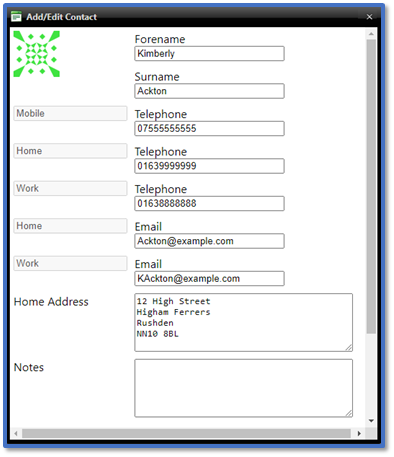
In Add Edit Contact, update the following fields as required:
-
-
In Forename, enter the contact’s first name.
-
In Surname, enter the contact’s last name.
-
In Mobile Telephone, enter the contact’s mobile number used for sending messages via SMS to Mobile and Voice to Mobile.
-
In Home Telephone, enter the contact’s landline number used for sending messages via Voice to Home.
-
In Work Telephone, enter the contact’s work number used for sending messages via Voice to Work.
-
In Home Email, enter the contact’s personal email address used for sending messages via Email.
-
In Work Email, enter the contact’s work email address used for sending messages via Email.
-
In Home Address, enter the contact’s address information. This can be included in messages using the $homeaddress$ token. Read our guide for further information: Messenger: Messenger: Tokens (Merge Fields).
-
Tick or untick Do not translate messages if applicable. Read our guide for further information: Messenger: Translate Messages.
-
If required, use Add New Telephone/Add New Email/Add New Address to include additional fields to fill in.

-
Click Submit.
Instructions – Delete Contacts
-
Go to Tools > Contacts > Manage Contacts.
-
The Manage Contacts show a list of all the contacts in your Messenger account.

-
Find the contact(s) and tick the checkbox(s).

-
Click Delete Selected.


