Scope
Steps to create and manage letter templates.
Instructions – Add Letter Template
-
Go to Tools > Libraries > Letter Templates.
-
Click Add a Template.
-
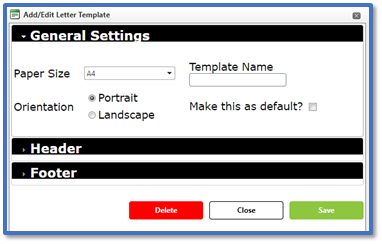
In General Settings, select the Paper Size:
-
Enter the Template Name.
-
Select the Orientation:
-
Tick Make this as default if you want this template to be pre-selected when creating letters.
-
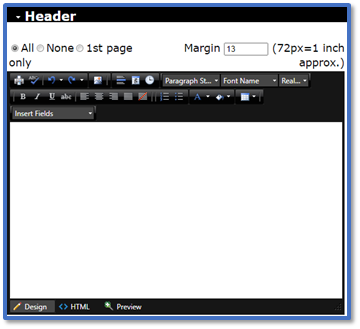
In Header/Footer, choose which pages will have a header/footer:
-
For Margin, enter the measurement for how wide the margin should be.
-
Compose the contents of the header/footer in the text editor. Read our guide for further information: Messenger: Basic and Advanced Editor.
-
Click Save.
-
To create your letters, please read our guide for further information: Messenger: Creating Letters.
Instructions – Edit Letter Template
-
Go to Tools > Libraries > Letter Templates.
-
In the list of existing templates, double-click on the one you want to open the Add/Edit Letter Template window.
-
Make the relevant changes in General Settings/Header/Footer > Save or click Delete to remove it.
Instructions – Delete Letter Template
-
Go to Tools > Libraries > Letter Templates.
-
In the list of existing templates, double-click on the one you want to open the Add/Edit Letter Template window.
-
Click Delete.
-
In the confirmation pop-up, click OK.


