Scope
Steps to create a letter from Advanced Messaging.
Instructions
-
Choose a message template from the Message Library or compose the message yourself in the text editor.
-
In Select Template, choose one of the options from the drop-down. Read our guide for further information: Messenger: Manage Letter Templates.

-
Use the tools available in the Basic Editor to format your email e.g., insert hyperlinks, insert images, add bullet lists, change font type etc. Read our guide for further information: Messenger: Basic and Advanced Editor.

-
You can switch from the standard Design view to the HTML view if you would prefer creating the Xpression using HTML code.
-
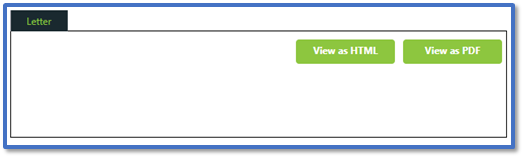
Use Preview to open a browser with a copy of the letter, including the header and footer from the template.

-
Click View PDF to download a PDF version of that preview. These options are also available on the next page when the letter is generated.
-
Continue to Step 11 in Messenger: Send Advanced Messages to produce the letter.
-
You will see an option to download your letter as below:

-
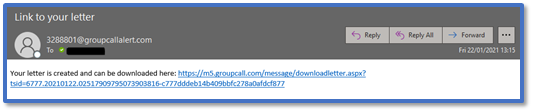
You will also receive an email with a download link for your letter: