Scope
Steps to use the Quick Message wizard to send a message to the whole school.
Instructions
-
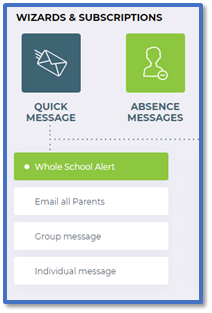
Go to Quick Message > Whole School Alert.
-
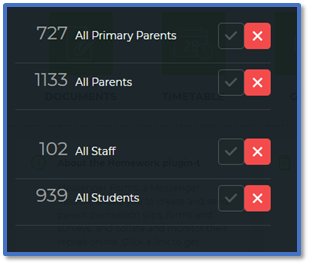
Tick at least one of the following:
-
-
All Primary Parents: The message will send to all primary parental contacts of the students i.e., the parent listed as the priority contact in the MIS.
-
All Parents: The message will send to all the parental contacts of the students, regardless of their priority.
-
All Staff: The message will send to all the staff members in your account.
-
All Students: The message will send to all the students themselves using their own contact details.
-
Click Next Step.
-
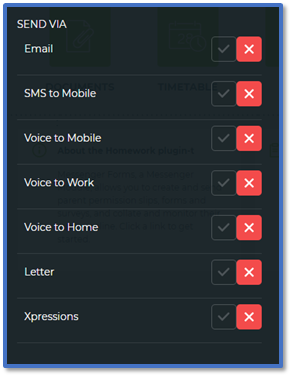
For Send via, tick one or more of the following options for sending the message:
-
-
Email: The message will be sent to the contact’s Home Email and/or Work Email.
-
SMS to Mobile: The message will be sent to the contact’s Mobile Telephone.
-
Voice to Mobile/Work/Home: The message will be sent to the contact’s Mobile Telephone/Work Telephone/Home Telephone.
-
Letter: The message will be copied into a PDF document to print out a paper copy.
-
Xpressions: The message will be sent to the contact’s registered device.
-
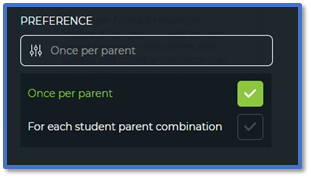
For Preference, select one of the following:
-
-
Once per Parent: For parents of siblings, this option means that they will only receive one message from the school regardless of the number of the children they have. Use this for general messages that are not personalised to any one sibling.
-
For each Student Parent combination: For parents of siblings, this option means that they will receive your message as many times as they have children. Use this for messages that are personalised for each student.
-
Click Next Step.
-
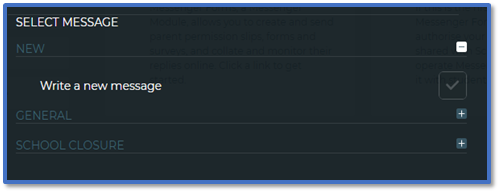
In Select Message from Library, tick Write a new message if you intend to compose the message yourself or one of the message templates.
-
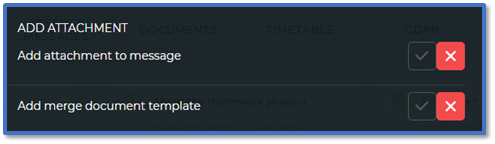
If you are sending an email and/or Xpression, there will be an Add Attachment section:
-
Click Next Step.
-
If you only ticked one of the message templates, skip to Step 18.
-
If you ticked Add merge document, skip to Step 16 first before continuing.
-
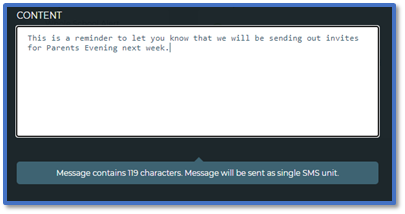
In Content, enter the body of the message in the text box.
-
If you are sending an SMS, enter the SMS Header. This is the opening line of the message, usually used for the school name. Read our guide for further information: Messenger: Change the SMS Header.

-
If you are sending an email, enter the Email Subject. This is the title of the email that will appear in the recipient’s mailbox.

-
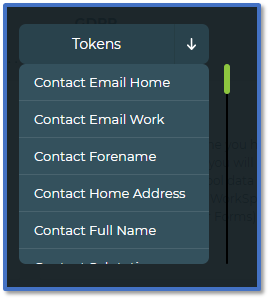
Use the Tokens menu to include merge fields in the message to help personalise it for the individual. Read our guide for further information: Messenger: Tokens (Merge Fields).
-
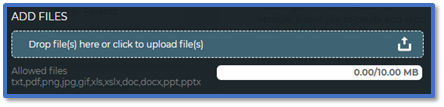
If you ticked Add attachment to message, click on the Add Files box to find and upload the file(s) you want to attach.
-
Tick Save Message to Library to save a copy of the message you created in the Message Library. Read our guide for further information: Messenger: Manage Message Templates.

-
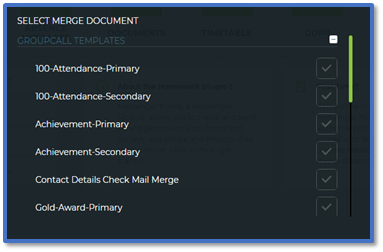
If you ticked Add merge document template, you will first need to tick the relevant merge document from the list before you go to Compose Message. Read our guide for further information: Messenger: Send Merge Documents.
-
Click Next Step.
-
On the Confirm message page, check all the details of the message being sent.
-
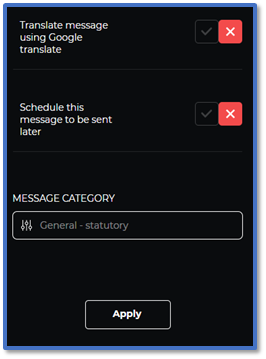
In Options, you can tick one or more of the following then click Apply:
-
Translate message using Google translate: If any of the contacts do not have English as their first language, they will receive a translated copy of the message in their chosen language instead.
-
Schedule this message to be sent later: Select a time and date for the message to be sent.
-
Click Send.


