Scope
Steps to add, edit, and delete message templates.
Instructions – Add Message Templates
-
Go to Tools > Libraries > Message Library.
-
If sending an SMS, select the Broadcast, Open or Closed tab. If not, leave it as Broadcast. Read our guide for further information: Messenger: Broadcast, Open, and Closed SMS.
-
Click New Message.
-
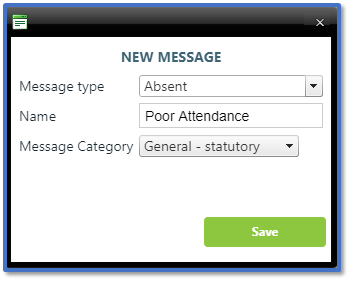
In Message type, enter the type of the message you are adding or select an existing option from the drop-down.
-
In Name, enter the name of the message template.
-
In Message Category, select the most relevant category from the drop-down.
-
Click Save.
-
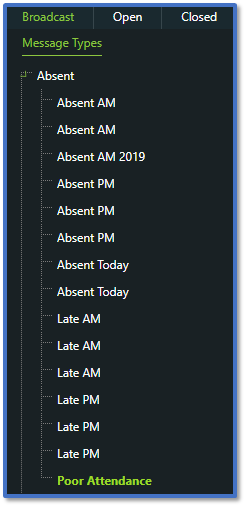
On the left, expand the Message Type you used > select the message you added to open the text box.
-
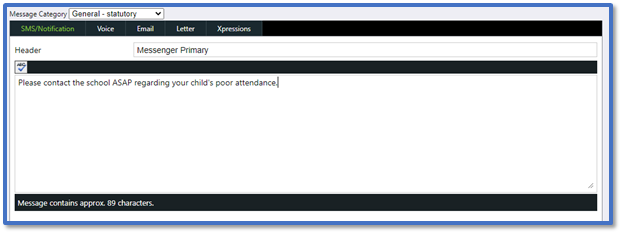
Select the relevant tab and enter the contents of the message. Read our guides for further information:
-
Click Save.
Instructions – Edit Message Templates
-
Go to Tools > Libraries > Message Library.
-
Find the relevant message template under the Broadcast, Open or Closed tab and select it.
-
Select the relevant message tab and change the contents to what you require.
-
Click Save.
Instructions – Delete Message Templates
-
Go to Tools > Libraries > Message Library.
-
Find the relevant message template under the Broadcast, Open or Closed tab and right-click it.
-
Click Delete.
-
If you have deleted the default message templates and wish to restore them, read our guide for further information: Messenger: Copy Standard Message Library.


