Scope
Steps to compose an email.
Instructions
-
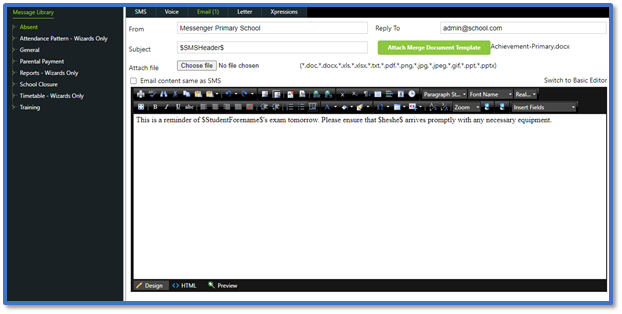
Choose a message template from the Message Library or compose the message yourself in the text editor.
-
Confirm the details in the From field and Reply To email address are correct.


-
Enter the Subject of the email or use the one provided by your message template.

-
To add an attachment, click Choose File > select the file > Open.

-
Any attachments you add will show directly beneath this.

-
- Note: The digits at the start of the filename are added automatically as a unique identifier.
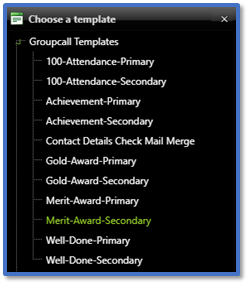
- Click Attach Merge Document Template to use the mail merge feature. Read our guide for further information: Messenger: Send Merge Documents.
-
Use the tools available in the Basic Editor / Advanced Editor to format your email e.g., insert hyperlinks, insert images, add bullet lists, change font type etc. Read our guide for further information: Messenger: Basic and Advanced Editor.

-
You can switch from the standard Design view to the HTML view if you would prefer creating emails using HTML code.

- Continue to Step 11 in Messenger: Send Advanced Messages.


